

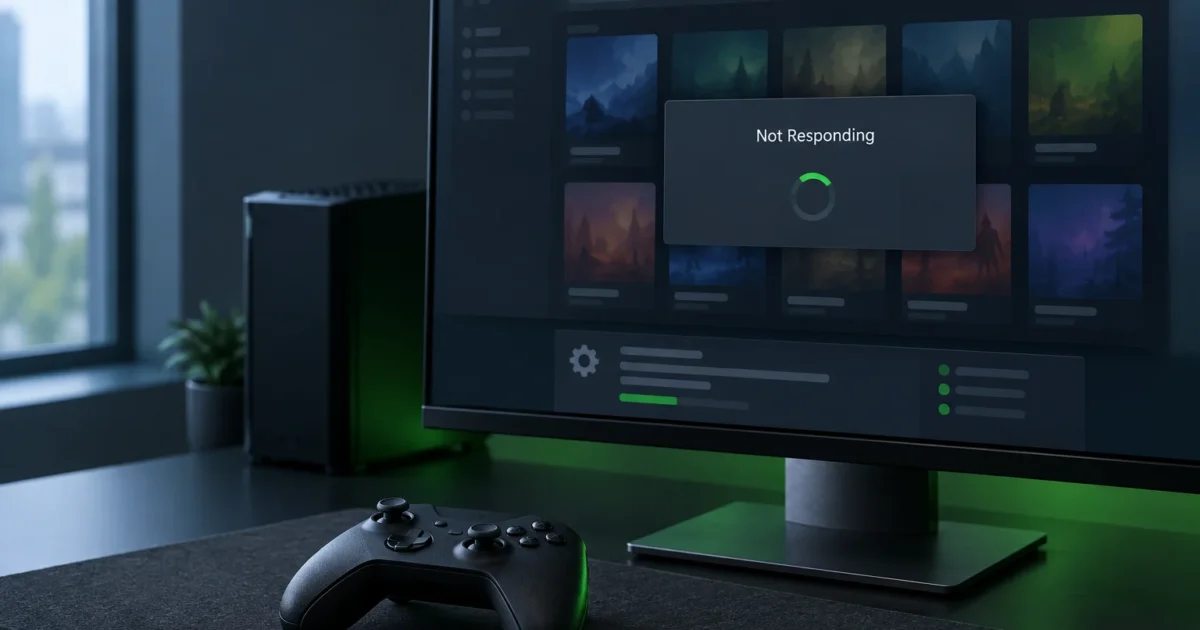
The Xbox app on your Windows PC either freezes with a “Not Responding” title bar, closes on its own, or crashes the moment you open it. The cause is usually a supporting Windows component, such as Gaming Services, the Microsoft Store, a pending Windows update, or a driver, and every fix below except the final reinstall leaves your installed games alone.
Xbox App Keeps Crashing on Windows: Quick Reference
| Symptom | Start with |
|---|---|
| App window freezes or says “Not Responding” | Fix #1 (End task), then Fix #2 (restart PC) |
| App crashes right after launch | Fix #4 and #5 (updates), then Fix #6 (Repair, then Reset) |
| App opens, but games won’t install or launch | Fix #3 (Xbox status), then Fix #7 (Gaming Services) |
| Freezes during sign-in or online features | Fix #9 (firewall and antivirus) |
| Crashes only while Discord or a capture tool is running | Fix #10 (drivers and overlays) |
| Nothing above helped | Fix #11 (Event Viewer), then Fix #12 (reinstall) |
Before You Begin
What Gaming Services is and why it matters
Gaming Services is a separate background app that the Xbox app relies on to install and launch PC games. On most Windows 10 and Windows 11 setups, it appears in your Windows installed-apps list as its own entry, typically with Repair and Reset options similar to other apps.
If the Xbox app opens fine but games won’t install or start, Gaming Services is a more likely culprit than the Xbox app itself.
Prerequisites
- A PC running Windows 10 or Windows 11, version 22H2 or later
- An active internet connection (a wired Cat6 Ethernet cable rules out Wi-Fi drops while you test)
- The same Microsoft account signed in to both the Microsoft Store and the Xbox app
- An active PC Game Pass or Game Pass Ultimate membership, if the problem involves Game Pass titles
- Windows administrator access, needed for driver and firewall changes
Windows 10 vs. Windows 11: Most fixes work the same way on both. The Settings paths do differ, and each fix lists them separately. Labels can shift slightly between Windows builds, so look for the closest matching wording.
How to Fix the Xbox App Crashing or Freezing on Windows
Fix #1: End the Frozen Xbox App in Task Manager
This is the first thing to try when the app freezes. A stuck background process is a common cause, especially right after a Windows or driver update.
- Click the X in the Xbox app’s top-right corner.
- If the window won’t close, press
Ctrl+Shift+Escto open Task Manager. - On the Processes tab, select Xbox.
- Click End task.
- Reopen the Xbox app from the Start menu.
Expected result: The app opens to your home screen with your library intact. Ending the task does not affect installed games.
Fix #2: Restart Your PC
A full restart is a standard troubleshooting step that can help clear stuck services and let any pending updates finish installing.
- Click Start > Power > Restart. Choose Restart specifically, not Shut down.
- After you sign back in to Windows, open the Xbox app before launching anything else.
Fix #3: Check Xbox Service Status
If the app opens but games won’t install, launch, or sign in, the problem may be on Xbox’s side.
- Open the Xbox status page in your browser.
- Look for active alerts that affect PC games or the Xbox app.
- If there’s an outage, wait for it to clear before trying the more invasive fixes below.

Fix #4: Install Pending Windows Updates
The Xbox app depends on current Windows components, and a pending update can leave them out of sync.
On Windows 11:
- Open Settings > Windows Update.
- Click Check for updates.
- Install everything offered, then restart if prompted.
On Windows 10:
- Open Settings > Update & Security > Windows Update.
- Click Check for updates, install the updates, and restart if prompted.
Fix #5: Update the Microsoft Store, Xbox App, and Gaming Services
The Xbox app and Gaming Services both update through the Microsoft Store. Microsoft’s Store app troubleshooting page points to this step first.
- Open Microsoft Store.
- Select Library in the left sidebar.
- Click Get updates.
- Let all updates finish, especially the Xbox and Gaming Services updates.
- Check that the profile icon in the Store and in the Xbox app shows the same Microsoft account.
Fix #6: Repair the Xbox App, Then Reset It If Needed
Repair vs. Reset:
- Repair fixes the app’s files and leaves your data alone.
- Reset clears the app’s locally stored data, such as your sign-in session and cached settings. The app itself stays installed, and in most cases your installed games remain untouched, since games are managed separately from the Xbox app.
Always try Repair first.
On Windows 11:
- Open Settings > Apps > Installed apps.
- Find Xbox and click the … menu next to it.
- Click Advanced options.
- Scroll down and click Repair. A checkmark appears when it’s done.
- Reopen the Xbox app and test it.
- If it still crashes, return to this page and click Reset, then confirm.
On Windows 10:
- Open Settings > Apps > Apps & features.
- Click Xbox, then Advanced options.
- Click Repair and test the app. If it still crashes, click Reset and confirm.
Expected result after Reset: The Xbox app asks you to sign in again. Your installed games should still be there, since they’re managed separately from the app.
Fix #7: Repair Gaming Services
Focus here if the Xbox app runs but games won’t install or launch.
- Open the Xbox app, select your profile picture, and open Settings.
- Look in the Support section for the Gaming Services Repair Tool and run it. The exact menu location varies by app version. If you don’t see the tool, the Xbox app troubleshooting page has the current instructions.
- Alternatively, use the Windows Settings path: Settings > Apps > Installed apps (Windows 10: Apps & features), find Gaming Services, then open Advanced options.
- Click Repair, then restart your PC.
Warning: Use Repair before Reset on Gaming Services. Reset is the heavier option, so save it for when Repair doesn’t help.
Fix #8: Reset the Microsoft Store’s Cached Data
The Xbox app installs and updates through the Store, so a corrupted Store cache can block Xbox app and Gaming Services updates.
Resetting the Store clears its own local data and is designed to leave the Xbox app’s data and your installed games untouched.
- Open Settings > Apps > Installed apps (Windows 10: Apps & features).
- Find Microsoft Store and open Advanced options.
- Click Repair. If problems continue, click Reset.
- Reopen Microsoft Store, sign in again if asked, and repeat Library > Get updates.
Fix #9: Check Your Firewall and Antivirus
Blocked network access can cause freezes during sign-in or online features.
- Open Windows Security > Firewall & network protection.
- Click Allow an app through firewall.
- Click Change settings.
- Find the entries for the Xbox app and Gaming Services. Checking both the Private and Public boxes for each one is commonly recommended to avoid blocked connections, though your specific network setup may only need one.
- Click OK.
- If you use third-party antivirus or firewall software, check its allow list as well. Allow the apps there rather than switching off protection.
This screen looks the same on Windows 10 and Windows 11. Entry names can vary by system.
Fix #10: Update Graphics Drivers and Close Overlays
Xbox Support lists driver updates as a fix for game freezes on its freezing troubleshooting page.
Overlay conflicts with tools like Discord or capture software are not well documented by Microsoft or Xbox Support, so treat this step as a test to rule out a possible conflict rather than a confirmed fix.
- Right-click Start and select Device Manager.
- Expand Display adapters.
- Right-click your graphics card and select Update driver > Search automatically for drivers.
- Restart your PC.
- Fully quit any overlay or capture software, such as Discord or recording tools, from the system tray.
- Open the Xbox app alone. If it stays stable, turn the other apps back on one at a time to find the conflict.
Fix #11: Check Event Viewer Before Reinstalling
Event Viewer is a general Windows diagnostic tool, not an official Xbox Support step. It can tell you which component is actually failing, which helps you avoid a pointless reinstall.
- Reproduce the crash and note the time.
- Click Start, type Event Viewer, and open it.
- Go to Windows Logs > Application.
- In the right pane, click Filter Current Log, check Error, and click OK.
- Find errors timestamped at the moment of the crash.
- Open each one and read the faulting application or module name.
What to look for:
- An error naming Gaming Services points back to Fix #7.
- An error naming a graphics driver file points to Fix #10.
- An error naming only the Xbox app supports moving on to Fix #12.
Fix #12: Reinstall the Xbox App From Microsoft Store
Use this as a last resort.
- Open Settings > Apps > Installed apps (Windows 10: Apps & features).
- Select Xbox > Uninstall and confirm.
- Restart your PC.
- Open Microsoft Store, search for Xbox, and click Get or Install.
- Sign in with the Microsoft account linked to your Game Pass membership.
Leave Gaming Services installed during this step unless Xbox Support tells you otherwise.
Tips and Troubleshooting
- Games won’t install even though the app opens: This is usually a Gaming Services or account problem rather than an app crash. See Fix #3 and Fix #7, and confirm your PC Game Pass membership is active.
- The app crashes only after a Windows update: Run Fix #5 right away. The Xbox app and Gaming Services often need their own Store updates to match.
- Repair did nothing: That’s common when the problem is corrupted local data. Reset is the logical next step.
- A controller freezes the app: Unplug any connected controller, such as an Xbox Wireless Controller, and test the app without it to rule it out.
- Nothing sticks: Contact Xbox Support. Include the error details from Event Viewer, which saves time.
Wrapping Up
For freezes, ending the task and restarting (Fix #1 and #2) is the recommended first step to try. For launch crashes, Microsoft and Xbox support guidance point to updating through the Microsoft Store and then running Repair before Reset as the standard approach.
Many people won’t need to reinstall the app at all. If the app keeps crashing after a reinstall, or Event Viewer keeps naming system files rather than Xbox components, the problem is likely deeper in Windows, and it’s time to contact Xbox Support.
| Step | Action | Applies To |
|---|---|---|
| 1–2 | End task, restart PC | Windows 10 and 11 |
| 3–5 | Check Xbox status, Windows Update, Store updates | Windows 10 and 11 (different Settings paths) |
| 6–8 | Repair/Reset Xbox app, Gaming Services, and Store | Windows 10 and 11 (different Settings paths) |
| 9–10 | Firewall, drivers, overlays | Windows 10 and 11 |
| 11–12 | Event Viewer, reinstall | Windows 10 and 11 |
Resources
Sources retrieved 2026-10-30.