

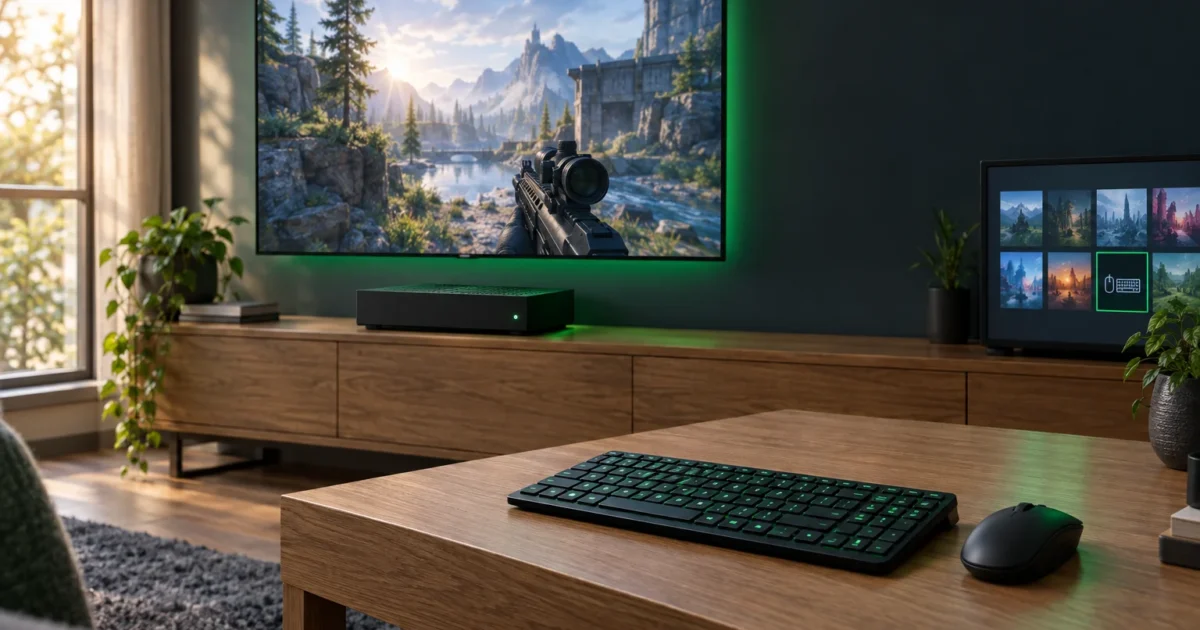
Xbox Cloud Gaming mouse and keyboard support works only in specific games, so plugging in a mouse doesn’t guarantee your cloud game will respond to it. To check a game, look for it in Xbox’s official Play with mouse and keyboard collection, or find the mouse-and-keyboard badge on its page. Then stream it through Edge or Chrome in full screen, or through the Xbox app on Windows, and click inside the stream to switch input. See also our guide on GTA VI launch testing examines mouse, keyboard and steering-wheel compatibility.
What Is Xbox Cloud Gaming Mouse and Keyboard Support?
Xbox Cloud Gaming streams Game Pass games from Microsoft’s servers, so you don’t have to download them. A subset of those streamed games accepts mouse and keyboard input instead of a controller. Xbox cited 130+ supported titles in its February 2026 Xbox Update and 190+ in its April 2026 Xbox Update. The list keeps changing, which is why third-party “supported games” lists from 2024 are out of date.
There’s one important catch. Support belongs to the cloud-streamed build of each game. A game that plays fine with mouse and keyboard when installed on PC can still require a controller when you stream it. The official collection and badge are the way Xbox tells you which games support it (Xbox Support, retrieved October 8, 2026).
Prerequisites
- An active Xbox Game Pass plan that includes cloud gaming. Xbox’s cloud gaming page lists Essential, Premium, and Ultimate, with monthly cloud playtime of 5 hours on Essential, 10 hours on Premium, and 15 hours on Ultimate once the limits take effect in November 2026. Until then, these limits don’t apply. The same page notes that select free-to-play games, such as Fortnite, need only a free Microsoft account. Availability also depends on your region and device.
- A supported client. That means Microsoft Edge or Google Chrome on Windows, macOS, or Linux, or the Xbox app on Windows.
- A mouse and keyboard connected to the device you’re streaming from.
- An internet connection of at least 10 Mbps. Xbox recommends 20 Mbps on PCs, consoles, and tablets for the best performance (About cloud gaming).
- A game that appears in the Play with mouse and keyboard collection or shows the badge.
| Requirement | Details |
|---|---|
| Subscription | Game Pass Essential (5 hrs/month), Premium (10 hrs/month), or Ultimate (15 hrs/month); a free Microsoft account covers select free-to-play games |
| Browser | Microsoft Edge or Google Chrome |
| App | Xbox app (Windows only) |
| Connection | 10 Mbps minimum, 20 Mbps recommended. A Cat6 Ethernet cable works well on desktops, since Xbox recommends a wired connection where possible. |
| Mouse and keyboard not documented | Phones, tablets, smart TVs, Fire TV, and VR headsets. These devices support Xbox Cloud Gaming with a controller or touch, but Xbox doesn’t document mouse-and-keyboard play on them. |
Mac users don’t have an Xbox app option, so you’ll stream through Edge or Chrome. That’s an officially supported path, not a workaround.
Step-by-Step Guide
Step 1: Check whether your game supports mouse and keyboard
Check the game before you plug anything in.
- Open
https://www.xbox.com/playin Edge or Chrome and sign in with your Game Pass account. - Scroll the cloud library until you find the Play with mouse and keyboard collection.
- Select the collection to see every title that currently supports mouse and keyboard in the cloud.
- If you’re looking for one specific game, open its page and look for the mouse-and-keyboard badge.
Expected result: If the game appears in the collection or shows the badge, it supports mouse and keyboard. If it doesn’t, plan on using a controller, such as an Xbox Wireless Controller.

Step 2: Connect your mouse and keyboard
Connect your mouse and keyboard to whichever device you’ll stream from.
Windows
- Plug in a USB mouse and keyboard. Windows installs them automatically.
- For Bluetooth devices, go to Settings > Bluetooth & devices > Add device > Bluetooth.
- Select your mouse or keyboard from the list and confirm.
Expected result: Both devices appear under Bluetooth & devices > Devices.
macOS
- Plug in a USB mouse and keyboard, or put your Bluetooth devices into pairing mode.
- Open Apple menu > System Settings > Bluetooth.
- Click Connect next to each device.
Expected result: Each device shows as Connected in the Bluetooth list.
What about Xbox Series X|S?
Xbox’s official mouse-and-keyboard guidance for cloud gaming covers Edge and Chrome on a computer and the Xbox app on Windows. Xbox began testing mouse and keyboard for cloud games on consoles with Xbox Insiders in May 2025, but its support guide still doesn’t document console cloud play with a mouse and keyboard, so plan on using a controller there. The steps below apply to Windows, macOS, and Linux.
Step 3 (Web: Windows, macOS, Linux): Launch the game in Edge or Chrome
- Go to
https://www.xbox.com/playin Microsoft Edge or Google Chrome. - Open the Play with mouse and keyboard collection and select your game.
- Click Play.
- Switch to full screen once the game starts. On Windows, press
F11. On a Mac, pressFn+Fin Chrome, or choose View > Enter Full Screen in your browser’s menu bar. Press and holdEscto leave full screen. - Click inside the game stream.
- Press any key on the keyboard.
Expected result: The game’s on-screen prompts change from controller buttons to keyboard keys, and the mouse controls the camera or cursor.
In a browser, full screen is required. Without it, the browser may not capture the mouse properly, and your cursor will move around the desktop instead of the game.
Tip: Press
F9to release the mouse pointer so you can use the browser normally. Click back into the stream to capture it again.
Step 4 (Windows): Launch the game in the Xbox app
- Open the Xbox app and sign in with your Game Pass account. The app is available from the Microsoft Store.
- Select Cloud gaming in the left navigation.
- Open Play with mouse and keyboard, or choose a game that shows the badge.
- Click Play.
- Click inside the stream window once it loads.
- Press any key on the keyboard.
Expected result: Keyboard prompts appear in the game, and mouse movement controls aiming or the menu cursor.
How the app differs from a browser: the Xbox app gives you a built-in shortcut reference in its Settings, and you don’t need to manage browser full-screen mode yourself. Check the game’s mouse-and-keyboard badge in whichever client you use.
Step 5: Adjust in-game controls
- Open the game’s own Options or Settings menu.
- Remap keys or change mouse sensitivity, if the game offers those settings.
These settings live inside each game, so the options vary from title to title.
Configuration
| Setting | Where to find it | What it does |
|---|---|---|
| Keyboard shortcuts (Xbox app) | Your gamertag > Settings > Cloud gaming > Keyboard shortcuts | Shows the current shortcut map for cloud play |
| In-stream shortcuts | More options (…) > Menu > Keyboard shortcuts | Shows the same list without leaving the game |
| Full-screen mode (browser) | F11 on Windows, Fn+F in Chrome on Mac | Needed for the browser to capture the mouse |
| Pointer release | F9 | Stops the stream from capturing the mouse |
Switching inputs mid-session: Select the game screen and press any key to switch to mouse and keyboard. Press the Xbox button on your controller to switch back. You don’t need to restart the stream.
Tips and Troubleshooting
Fix #1: Confirm the game is in the collection
If the mouse and keyboard do nothing at all, the streamed version of the game probably doesn’t support them.
- Go back to
https://www.xbox.com/play. - Search for the game inside the Play with mouse and keyboard collection, or look for the badge on its page.
- If the game is missing from the collection, use a controller. Its PC or Steam support applies only to those versions.
Fix #2: Click inside the stream
- Wait until the game has fully loaded past its splash screens.
- Click directly on the game image.
- Press a key to test.
This fixes the common case where the keyboard worked on the library page but stops once the game opens. The library page had focus, not the game.
Fix #3: Switch to full screen
- Press
F11on Windows, orFn+Fin Chrome on a Mac. - Click inside the stream.
- Move the mouse to capture it again.
This fixes a cursor that moves around the desktop or browser instead of the game.
Fix #4: Release and recapture the pointer with F9
- Press
F9to release pointer capture. - Click back into the stream.
- Move the mouse.
Use F9 specifically. It’s the shortcut Xbox’s support documentation confirms.
Fix #5: Trigger the input switch
- Put the controller down.
- Press any key to switch to mouse-and-keyboard mode.
- When you want the controller back, press its Xbox button.
Fix #6: Use a supported device and browser
- Use Edge or Chrome. Other browsers aren’t on Xbox’s supported list.
- If input fails on a TV, Fire TV, phone, tablet, or VR headset, move to a Windows or Mac computer or the Xbox app on Windows. Official guidance doesn’t confirm mouse-and-keyboard cloud support on those devices.
- Some titles, such as Fortnite, may behave differently in the browser than in other clients. Check the game’s listing for the client you’re using.
Fix #7: Contact Xbox Support
If a badged game still ignores input after all of the fixes above, contact Xbox Support. Tell them the game, the client you used, and your browser version.
FAQ
Does every Game Pass cloud game support mouse and keyboard? No. Only the games in the official collection, or with the badge, support it.
Can I check before I start playing?
Yes. Use the Play with mouse and keyboard collection at xbox.com/play or in the Xbox app.
Can I use a mouse and keyboard on Xbox Series X|S for cloud games? Xbox has tested it with Xbox Insiders, but its support guide doesn’t cover it. Mouse-and-keyboard cloud play is documented for Edge and Chrome on a computer and the Xbox app on Windows, so use a controller on console.
Can Mac users play with mouse and keyboard? Yes. Use Edge or Chrome on macOS.
What shortcuts are available? Open More options > Menu > Keyboard shortcuts during a stream. In the Xbox app, go to Settings > Cloud gaming > Keyboard shortcuts.
Wrapping Up
Checking the official collection first saves you the most frustration. When a supported game ignores input, start by clicking inside the stream and, in a browser, switching to full screen. On Windows you can use the Xbox app or a browser, and on a Mac, Edge or Chrome is the supported path. If you want mouse and keyboard in a game that isn’t on the list, keep a controller nearby, because most cloud titles still need one.
| Step | Action | Applies To |
|---|---|---|
| 1 | Check the collection or badge | All |
| 2 | Connect your mouse and keyboard | Windows, macOS |
| 3 | Stream in full screen in Edge or Chrome | Web (Windows, macOS, Linux) |
| 4 | Launch from Cloud gaming in the Xbox app | Windows |
| 5 | Click into the stream, then press a key | All |
Resources
Sources retrieved October 8, 2026: