

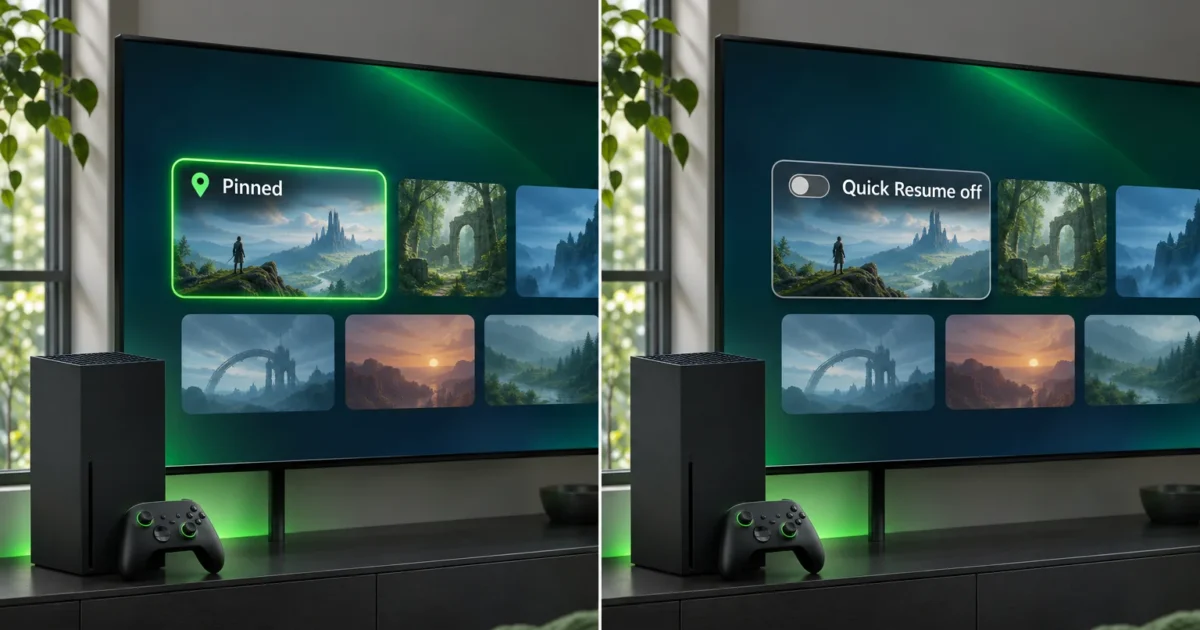
To manage Quick Resume on your Xbox Series X or Series S, open My games & apps > Groups > Quick Resume, highlight a game, and press the Menu button to pin it. Microsoft introduced pinning in the March 2022 Xbox update, which lets you pin up to two games on Xbox Series X|S. Since the April 2026 Xbox update, you can also turn Quick Resume off for a single game with Manage Quick Resume.
How to Manage Quick Resume on Xbox Series X|S: Quick Reference
What Is Quick Resume?
Quick Resume is built into Xbox Series X|S system software. When you switch away from a game, the console saves the game’s suspended state, so you can return to the same spot later instead of starting at the title screen. Microsoft’s Quick Resume support page covers how the feature works on Xbox Series X|S.
Two numbers are easy to mix up:
- Suspended states: Quick Resume can hold multiple games in a suspended state at once, and exactly how many depends on the games you’re playing. As you suspend more games, older ones can drop out of the group to make room.
- Pins: Pinning keeps a game in the Quick Resume group no matter what else you play. Microsoft’s March 2022 announcement sets the limit at two pinned games. A pinned game drops out only if you remove it yourself or the game takes a mandatory update.
| Goal | Where to do it | Applies to |
|---|---|---|
| Find suspended games | My games & apps > Groups > Quick Resume, or the top right of the Guide | Xbox Series X|S |
| Keep a game from being bumped | Quick Resume group > Menu > Pin to Quick Resume | Up to two pinned games |
| Free a pin slot | Same menu on a pinned game | Pinned games |
| Stop one game from using Quick Resume | More options > Manage Quick Resume, or Manage game and add-ons > Quick Resume settings | Consoles with the April 2026 update or later |
Before You Begin
- You have an Xbox Series X or Xbox Series S console.
- You have a controller with a Menu button (three lines) that these steps use, current Xbox controllers like the Xbox Wireless Controller or Xbox Elite Wireless Controller Series 2 have one.
- Your console has current system software. The per-game control began Insider testing in March 2026 and rolled out broadly with the April 2026 Xbox update.
- You have a game you’ve recently played and switched away from, so it appears in the Quick Resume group. Games you haven’t played for a while, or that dropped out of the group, may not show up until you launch them again and switch away.
Step-by-Step Guide
Fix #1: Open the Quick Resume Group
- Press the Xbox button on your controller to open the Guide.
- Look at the top right of the Guide. Your recently suspended games appear there.
- For the full list, go to My games & apps > See all > Groups > Quick Resume.
Expected result: You see a tile for each game the console is currently holding in a suspended state.

Fix #2: Pin a Game to Quick Resume
- In the Quick Resume group, highlight the game you want to keep.
- Press the Menu button.
- Select Pin to Quick Resume.
Expected result: The game stays in the Quick Resume group even after you play other games. Menu labels can change between console updates, so check the exact wording on your screen.
Fix #3: Work Within the Pin Limit
- Check how many games you’ve already pinned. You can pin up to two.
- If two games are already pinned, run Fix #2 on the new game anyway.
- When the console asks which pin you want to replace, choose the game you care about less.
Expected result: The new game takes the replaced game’s pin. According to Microsoft’s March 2022 announcement, the console asks which existing pin to replace instead of refusing the new one.
Fix #4: Unpin a Game
- In the Quick Resume group, highlight a pinned game.
- Press the Menu button.
- Choose the option that removes the pin. Microsoft’s announcement doesn’t name it, so the label may differ on your console.
Expected result: The game loses its pin. After that, newer suspended games can bump it out of the group like any other game.
To free up a suspended but unpinned game, keep playing other games. Suspended games that aren’t pinned can rotate out of the Quick Resume group as you play more titles.
Fix #5: Turn Off Quick Resume for One Game (Quick Resume Group)
- Open the Quick Resume group and highlight the game.
- Press the Menu button to open More options.
- Select Manage Quick Resume.
- Turn Quick Resume off for that game.
Expected result: For that game on that console, it starts fresh when you launch it instead of trying to resume. This is useful for always-online games that ask you to reconnect after resuming. It also helps with games that act unstable after sitting suspended for a long time.
Fix #6: Turn Off Quick Resume from Manage Game and Add-ons
- Highlight any game tile, for example in My games & apps.
- Press the Menu button.
- Select Manage game and add-ons.
- Select Quick Resume settings.
- Turn Quick Resume off for that game.
This path works even when the game isn’t currently in the Quick Resume group. Both paths come from Xbox Wire’s April 2026 update post. Menu wording on your console may differ slightly from the announcement.
Configuration
| Setting | Default | Where |
|---|---|---|
| Pin to Quick Resume | Off until you set it | Quick Resume group > Menu |
| Per-game Quick Resume | On for supported games | Manage Quick Resume or Quick Resume settings |
A common setup is to pin your two main games and turn Quick Resume off for any always-online game that keeps failing to resume. Use the Home screen groups guide if you want the Quick Resume group easier to reach.
Tips and Troubleshooting
- A game is missing from the group. A game only appears there if it supports Quick Resume and has a suspended state. Launch it, play for a moment, and then switch away from it.
- A pinned game doesn’t resume after a patch. Microsoft says a mandatory game update removes a game from Quick Resume, even when it’s pinned. Pin the game again after the update.
- You can’t pin another game. Microsoft’s limit is two pins. Unpin a game first, or replace one when the console asks you to.
- Quick Resume doesn’t work at all. This guide covers managing Quick Resume, not repairing it. Use our Quick Resume troubleshooting guide instead.
Wrapping Up
Pin your most-played games (up to two), and leave everything else alone. For most people, that covers how they actually use Quick Resume.
The per-game off switch added in April 2026 is the more useful change, because it fixes the always-online reconnect problem without turning Quick Resume off everywhere. If games still won’t resume or keep crashing after you change these settings, use the troubleshooting guide or contact Xbox Support.
Resources
- Get back to your game instantly with Quick Resume (Xbox Support)
- March Xbox Update: Pin to Quick Resume, March 9, 2022 (Xbox Wire)
- April Xbox Update 2026 (Xbox Wire)
- Xbox Insiders: Quick Resume Settings preview, March 18, 2026 (Xbox Wire)
Sources retrieved November 3, 2026; March 2022 Xbox Wire post checked November 15, 2026.