

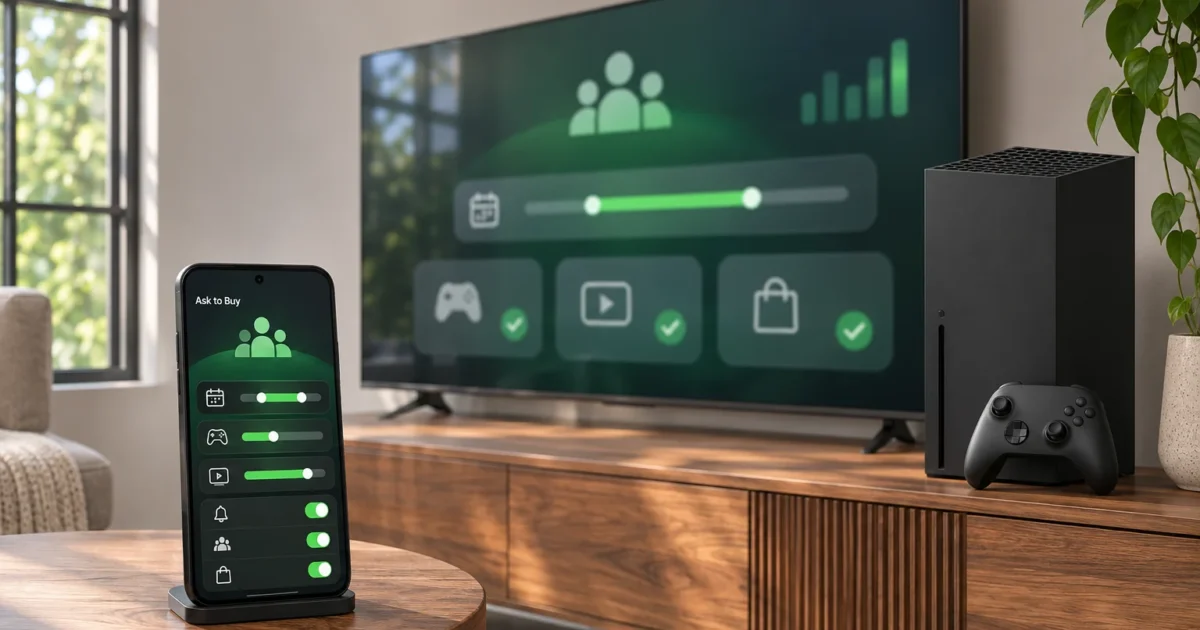
If your child is playing past bedtime or buying games without asking, you need two separate controls: a screen time schedule and Ask to Buy purchase approval. On Xbox Series X|S or Xbox One, both start with an adult organizer account and a child account that shows as a Member in your family group. You set the schedule in the Xbox Family Settings app or on the web, and you turn on purchase approval on the console.
Menu labels and paths may vary by platform, app version, and region. Use the steps below as a guide and follow the linked Microsoft instructions if your screens differ.
Set up Xbox Family Settings on your phone or the web
Fix #1: Install the app and choose your management surface
- Open the official Xbox Family Settings page on your phone.
- Choose the download option for your phone.
- Check the store listing’s device requirements before installing.
- Follow the steps for your device below.
The official app overview lists iOS and Android support. Check the store listing to see if the app works with your device.
| Surface | Use it for |
|---|---|
| Xbox Family Settings on iOS or Android | Manage a member’s Xbox screen-time schedules, review requests, and manage spending controls. |
| Microsoft family website (account.microsoft.com/family) | Manage family membership, set Xbox screen time from the member’s Screen time page (Microsoft’s screen time guide documents an Xbox tab there), and review a child’s spending. Approving individual requests is easier in the app. |
| Xbox Series X|S or Xbox One | Manage a child’s console privacy and purchase permissions, including Ask a parent, and protect console access. Use the app or web for screen-time schedules. |
You can’t manage screen-time limits from the Xbox console itself. Set schedules in the app or on the web. Use the console only for a child’s privacy, purchase, and access settings. To reach those settings on the console:
- Sign in with the adult organizer’s account.
- Press the Xbox button to open the guide.
- Select Profile & system > Settings > Account > Family settings.
- Select Manage family members.
- Select the child’s account.
Fix #6 continues from this screen to enable purchase approval for that child.
iOS: Install Xbox Family Settings
- Follow the iOS download link from the official Xbox page.
- Tap Get on the Xbox Family Settings App Store listing.
- Complete the installation prompts.
- Open Xbox Family Settings.
- Sign in with the adult organizer’s Microsoft account.
The app should open your family-management screen.

Android: Install Xbox Family Settings
- Follow the Android download link from the official Xbox page.
- Tap Install on the Xbox Family Settings Google Play listing.
- Open Xbox Family Settings after installation.
- Sign in with the adult organizer’s Microsoft account.
Check that you’re managing the right family group.
Web: Open Microsoft family management
- Open family.microsoft.com.
- Sign in with the same adult organizer account.
- Check the family group for the child’s account.
Use the same organizer account on your phone and in your browser. That keeps you in the same family group.
Fix #2: Add your child as a Member
Your child needs their own Microsoft account. For a new account, enter their correct birthdate during setup.
Follow Microsoft’s family-member addition instructions.
- Open the app’s Family screen.
- Select the green Accounts icon at the top right.
- Select Add child.
- Choose Add existing account if your child already has a Microsoft account.
- Enter the child’s email address.
- Select Send invitation.
- Select Done.
- Have your child open the invitation email.
- Have them select Join now using the intended Microsoft account.
- Return to the app’s Family screen.
- Pull down to refresh the list.
- Select Finish setting up beneath the child’s account, if shown.
- Complete the prompts.
- Select All done.
For a child without an account, select Create new account after Add child. Complete the account setup prompts, including the birthdate, then finish family setup.
Check that the account appears as a Member before setting limits.
Configure Xbox Family Settings screen time limits
Fix #3: Set a weekday allowance and playing window
The app separates how much your child can play from when they can play. Microsoft’s member-content instructions explain the schedule controls and how changes save on their own.
- Open Family in Xbox Family Settings.
- Select your child’s account tile.
- Select Screen time.
- Under Schedule, select the schedule you want to change.
You should see controls for which days the schedule covers, how much time is allowed, and when play is permitted. The labels used below (Days of the week, Time limit, Time range) are what the Android app showed when this guide was written. Your app version or region may use different names for the same three controls.
- Open Days of the week.
- Select Monday through Friday for your weekday rules.
- Open Time limit.
- Choose the daily allowance.
- Open Time range.
- Set the permitted playing window using From and To.
- Return to Schedule and review the result.
Changes save automatically. Reopen the schedule to check the values.
For example, choose a one-hour Time limit within a 4 p.m. to 7 p.m. Time range. Your child gets up to one hour of play inside that three-hour window.
The window doesn’t grant three hours of play. Both limits apply.
Choose from the allowance options shown in your app. The available increments can differ between app versions, so pick the closest value it offers. Anytime removes the playing-window limit from that schedule; review the daily allowance separately.
Screen time counts while your child is signed in to the console, even if they aren’t actively playing. Microsoft’s guide recommends reminding family members to sign out when they’re done.
To set the same schedule in a browser instead, sign in at account.microsoft.com/family with the organizer account, select the child, open Screen time, choose the Xbox tab, select a day, set the time range and limit, and select Finished. If no limits appear, select Turn limits on first.
Fix #4: Give weekends their own schedule
- Return to your child’s Screen time tile.
- Under Schedule, open the schedule covering Saturday and Sunday.
- Open Days of the week.
- Select the weekend days.
- Set the weekend Time limit.
- Set the weekend Time range.
- Return to the overview.
- Reopen both weekday and weekend entries to check their settings.
Use Every day only when the same rules should apply throughout the week.
A two-hour allowance assigned to Saturday and Sunday means two hours on each selected day. These daily allowances don’t form a shared weekly budget.
Fix #5: Check remaining time before granting an exception
When your child runs low on time, they can send a request for more from the console. The request appears in the Xbox Family Settings app’s notifications for the organizer to approve or decline. You can also add time yourself without editing the schedule.
- Open your child’s Screen time tile.
- Check the remaining scheduled allowance.
- If there’s a pending request, open it from the app’s notifications and check which member sent it.
- To grant time, approve the request or use the add-time option on the Screen time tile, and choose one of the durations the app offers.
- Check that the remaining time on the tile reflects what you granted.
Extra time applies to your child’s whole Xbox screen-time schedule, not to a single game. Microsoft’s screen time guidance covers device-wide schedules and allowing more time. It doesn’t describe a separate per-game time extension for Xbox. If you only want to allow more time for one game, grant a short exception and check in when it ends.
Handle Ask to Buy and store purchase approvals
Fix #6: Review purchase approval separately from screen time
A playing schedule doesn’t enable purchase approval. Microsoft’s child purchase-approval instructions describe Ask to Buy, including the Ask a parent setting on Xbox consoles. Configure this separately for each child who needs approval.
On Xbox Series X|S or Xbox One:
- Sign in with the adult organizer’s account.
- Press the Xbox button to open the guide.
- Select Profile & system > Settings > Account > Family settings.
- Select Manage family members, then select the child.
- Select Privacy & online safety > Xbox privacy > View details & customize.
- Select Buy & download.
- Set Ask a parent to On.
- Repeat for each child whose purchases should require approval.
If the labels differ, use the console section of the linked Microsoft instructions. An age-rating permission is a separate control from purchase approval.
Microsoft states that approval is not required when a family member spends Xbox gift-card or Microsoft account currency. Ask to Buy therefore does not require approval for every purchase: a child can spend available account funds without a separate purchase request. Purchases charged to a credit card or another payment method covered by the setting require approval.
To control the funds you provide, open family.microsoft.com, select the child, and open Spending. Review their balance and purchase history. Use Add money only when you want to make more funds available, and review saved payment methods separately.
Treat money you add and gift cards you give the child as funds they can spend without another approval. Turning on Ask to Buy does not place those funds behind a per-purchase approval step.
Take the same care with V-Bucks and Robux. When your child buys them from the Microsoft Store on Xbox, it’s a Microsoft Store transaction, so Ask to Buy applies unless they pay from their account balance or gift-card funds. Purchases made outside the Xbox store, such as on a game’s website, a phone app store, or another console, use that platform’s payment and parental controls. Ask to Buy doesn’t cover those.
Fix #7: Review requests without approving the wrong item
Use Microsoft’s purchase-request instructions alongside these steps. In Xbox Family Settings, sign in with the organizer account and open the purchase request from the notification or the app’s notifications area.
To approve a purchase:
- Check that the request concerns the correct Member.
- Review the product, edition, price, and payment source shown.
- Select Approve or the purchase-completion option displayed.
- Complete any payment confirmation and check the result.
To decline a purchase:
- Open the purchase request in the app.
- Check the member and requested item.
- Select Decline or the equivalent rejection option shown.
- Confirm if prompted.
Button labels can vary with the request and app version. Read the final action before selecting it, especially if it completes payment. For browser management, open family.microsoft.com with the same organizer account and select the child.
Don’t complete a purchase just to test whether requests work. Review the request first, then decline it if you don’t intend to approve spending. Review extra-time requests separately using Fix #5.
For phone alerts, use Microsoft’s activity reporting and notifications guidance. Check the request in the management app instead of relying only on a phone alert.
Close account-access gaps and fix missing controls
Fix #8: Protect adult profiles and unsigned-in access separately
A child’s schedule needs separate protection against access through an adult account or games played without signing in.
Start with the adult profile. On the console, signed in as the adult:
- Press the Xbox button to open the guide.
- Select Profile & system > Settings > Account > Sign-in, security & PIN.
- Select Create my PIN (or Change my PIN) and enter a PIN twice.
- Select Change my sign-in & security preferences and choose Ask for my PIN (or a Custom option that requires it), so your child can’t sign in as you. Older console software may say passkey instead of PIN.
Then cover access when nobody is signed in. Screen time is tracked against the signed-in account, so play when no one is signed in isn’t counted against your child’s schedule. Which games can start without anyone signed in depends on the game and your console settings.
In Settings > Account > Family settings, look for the content restriction that applies when no one is signed in and set it to your child’s age level. The exact label varies by console software version, so check Microsoft’s member-content instructions if you can’t find it.
Finally, secure the phone that has Xbox Family Settings with its screen lock, so your child can’t approve their own requests.
Use this as a checklist. Xbox doesn’t present these as one combined setting, and setting one doesn’t cover the others:
| What to check | Why |
|---|---|
| Adult profile PIN | Stops your child signing in as the organizer and skipping limits |
| Content access when no one is signed in | Limits what plays without a signed-in account |
| New-account and guest additions | Stops a new profile without limits from appearing |
| Phone screen lock | Protects the app that approves requests |
After making changes, check access using the child’s own account. Include a shared family game in that check.
Fix #9: Restore a missing member or inaccessible settings
- Confirm that Xbox Family Settings is signed in with the adult organizer account.
- Ask the invitee to open the invitation and select Join now with the intended account.
- Pull down on Family to refresh.
- Select Finish setting up if it appears.
- Complete the prompts.
- Confirm Member status.
If the member appears but their controls are hard to find, select member tile > Settings using the top-right icon. You can also select Settings at the bottom of Family, then select the member.
For schedules, use member tile > Screen time > Schedule.
If requests are still missing, check the organizer account and membership first. For purchases, also check whether the child used account funds, which do not require approval. Then follow the official notification guidance instead of changing the child’s schedule repeatedly.
Wrapping Up
Start with separate weekday and weekend schedules in Fix #3 and Fix #4. Enable purchase approval for each child in Fix #6, remembering that gift-card and account-balance spending does not require approval. Review console access protection separately. If limits or requests still fail after you confirm the organizer and Member accounts, contact Xbox Support.