


Your Xbox Game Pass save won’t load past the title screen, your progress has jumped back to an earlier checkpoint, or a save slot you know you created has vanished from the load menu entirely. Most of the time this isn’t permanent data loss; it’s a sync mismatch or a bad local cache, and there’s a specific order of fixes to try before you assume the save is gone for good.
What a Corrupted or Missing Save Actually Looks Like
Before troubleshooting, it helps to know which problem you actually have. A few patterns show up over and over:
- The game hangs or crashes on load. You select “Continue” and the game freezes, stutters, or drops back to the dashboard/desktop.
- Progress reverted. You’re clearly further along than what’s loading, which is almost always a sync conflict, not corruption.
- A save slot is missing. The game shows fewer save files than you remember creating.
- The save loads but looks broken. Inventory, currency, or unlocks are wrong or reset.
If progress just looks older than expected, that’s usually an out-of-sync save, not a corrupted one; the fix is forcing a manual sync (Fix #1). If the game won’t load the save at all or throws a file-read error, that’s closer to true corruption, and you’ll want Fix #2 or Fix #3.
Before You Begin
Make sure you have:
- An active Xbox Game Pass subscription (Essential, Premium, PC Game Pass, or Ultimate)
- The Microsoft account you normally use for Game Pass, signed in on the console or PC
- A stable internet connection, since cloud sync can’t complete over an unstable connection
- The Xbox app installed on Windows, if you’re troubleshooting a PC Game Pass title
- A few minutes of uninterrupted time; don’t force-quit the game or app mid-fix
| Requirement | Details | |
|---|---|---|
| Device | Xbox Series X | S, Xbox One, or Windows PC |
| Account | Signed-in Microsoft account with active Game Pass | |
| Network | Stable internet connection for cloud sync | |
| App | Xbox app on Windows (for PC troubleshooting) |
Cloud saves only sync for games you’re actively signed into with the correct Microsoft account. If you have multiple profiles on a shared console, confirm you’re checking the right one before assuming a save is missing.
Fix #1: Check Cloud Save Sync Status and Force a Manual Sync
This is the first thing to try for almost every save issue, because it fixes the most common cause: the local copy and the cloud copy disagree, and the device hasn’t pushed a fresh sync yet.
On the console:
- Fully close the game: hold the Xbox button, highlight the game, and select Quit. Don’t just leave it suspended.
- Go to Settings > System > Storage devices.
- Confirm your internet connection is active by checking Settings > General > Network settings.
- Relaunch the game and let it sit on the title screen for 30–60 seconds before selecting Continue, which gives the console time to pull the latest cloud save.
In the Xbox app on Windows:
- Open the Xbox app and sign in with the same Microsoft account you use for Game Pass.
- Click the Settings gear icon in the top-right corner.

- Select Backup & Sync from the settings list.
- Check the sync status for the game in question: it should show as Up to date. If it shows Syncing or an error, wait for it to finish or select the option to retry.
- If the game is currently running, close it completely, wait for the Backup & Sync panel to confirm Up to date, then relaunch.
Tip: A stable connection matters more than speed here. If your PC or console is on Wi-Fi and sync keeps failing, try a wired connection; a Cat6 Ethernet cable to your router can eliminate sync timeouts caused by a weak wireless signal.
Fix #2: Try the Game’s Built-In Save Repair or Verify Option
Some Game Pass titles ship with their own save-integrity check, separate from Xbox’s cloud sync. This is worth trying before anything more invasive.
- Launch the game and go to its own Settings or Options menu (not the Xbox dashboard).
- Look for a Save Data, Cloud Save, or Storage section within the game itself.
- If present, select Verify Save Data or Repair Save and let the process finish without interrupting it.
- Restart the game normally and check whether the save loads correctly.
Not every game has this option; it’s more common in larger open-world and RPG titles that manage complex save states. If the game doesn’t offer one, skip to Fix #3.
Fix #3: Clear the Local Save Cache Without Touching Cloud Saves
If sync looks fine but the save still won’t load, the local cached copy on your device may be the corrupted piece, not the cloud version. Clearing the local cache forces the game to pull a clean copy from the cloud on next launch.
On the console:
- Go to My games & apps > highlight the game > press the Menu button (three lines).
- Select Manage game & add-ons.
- Under Saved Data, select Delete local saved games. This removes only the device’s local copy; your cloud save is untouched.
- Relaunch the game and let it redownload the save from the cloud automatically.
In the Xbox app on Windows:
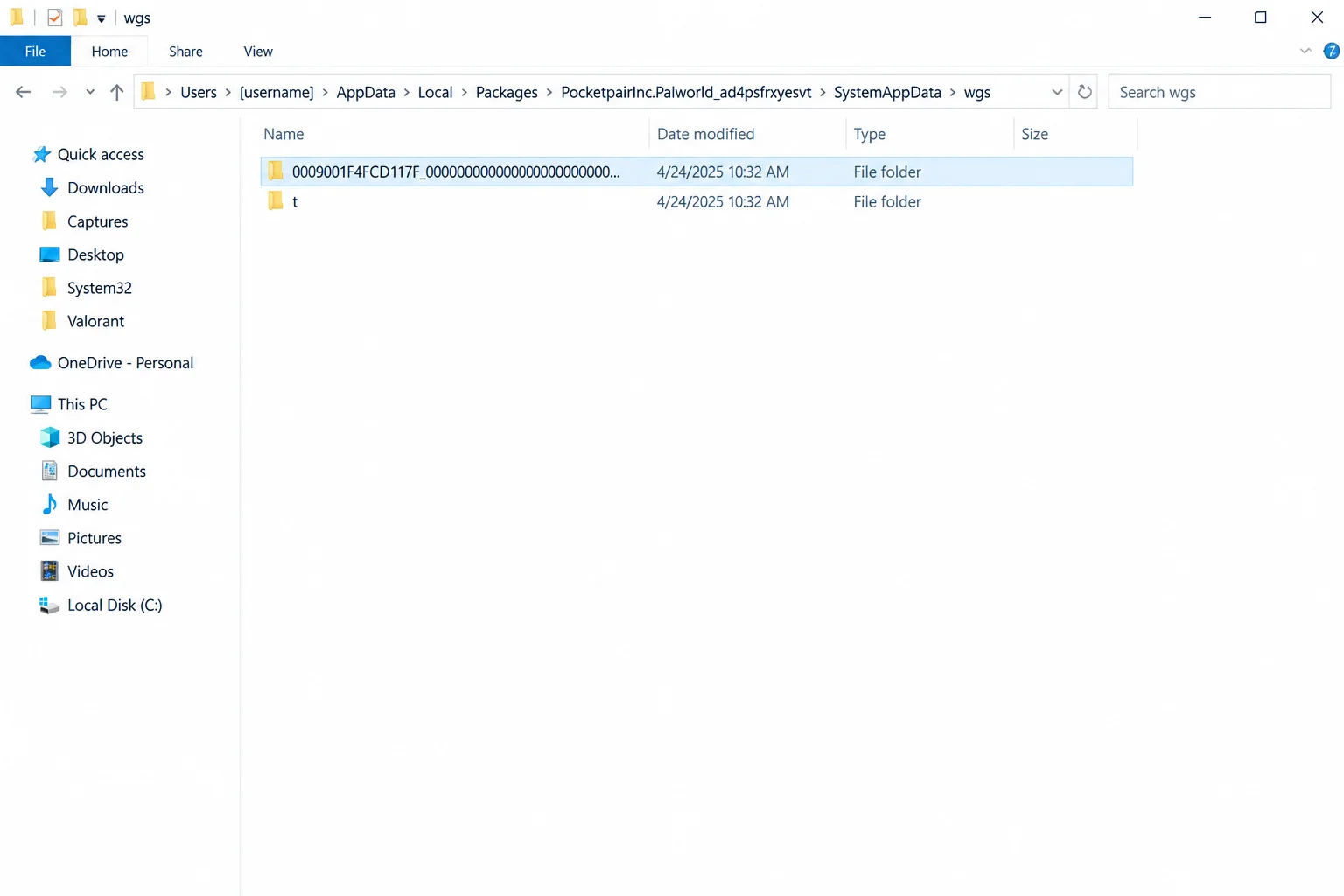
- Locate the game’s local save folder at:
C:\Users\YOUR_USERNAME\AppData\Local\Packages\GAME_PACKAGE_ID\SystemAppData\wgs
- Rename the
wgsfolder (don’t delete it yet) to something likewgs_backupas a safety net. - Relaunch the game through the Xbox app. It will create a fresh local cache and pull the current cloud save automatically.
- If the save loads correctly, you can delete the renamed backup folder later. If it doesn’t, rename
wgs_backupback towgsto restore your original local files before trying another fix.
Warning: Don’t edit files inside the
wgsfolder directly. The save data is stored in an encrypted, game-specific format, and manual edits will make the file unreadable.
Fix #4: Reinstall the Game While Preserving Cloud Save Data
Reinstalling does not delete your cloud save; cloud saves live on Microsoft’s servers, separate from the game install. This makes reinstalling a safe next step if clearing the local cache didn’t help.
On the console:
- Go to My games & apps, highlight the game, press the Menu button, and select Uninstall.
- Confirm you’re still signed into the correct profile.
- Reinstall the game from the same library entry or through the Xbox Game Pass app.
- On first launch, sign in and let the game check for cloud save data before you start a new game; most titles prompt you to load existing progress.
In the Xbox app on Windows:
- Open the Xbox app, go to My Library, right-click the game, and select Uninstall.
- Reinstall it from the same library entry.
- Launch the game and confirm the Backup & Sync panel shows the correct save syncing back down before you start playing.
Fix #5: Check Storage Health and Free Space
Storage errors are an underrated cause of save corruption, especially on consoles with a nearly full internal drive or an aging expansion card.
- Go to Settings > System > Storage on your console, or check available disk space in Windows File Explorer for your PC’s install drive.
- Confirm you have at least a few gigabytes of free space; saves can fail to write correctly when storage is nearly full.
- If you’re using external storage, check it’s properly connected and not showing errors. A failing external SSD or storage expansion card is a common, overlooked cause of repeated save corruption on the same game.
- If a specific storage device keeps causing errors, move installs off it and onto internal storage or a known-good drive.
Fix #6: Contact Xbox Support for a Backup Restore
If none of the above brings your save back, Xbox Support can sometimes check for a server-side backup, though this isn’t guaranteed for every title.
- Go to support.xbox.com and sign in with the account that had the affected save.
- Search for save data or cloud save issues, or use the Contact Us option to open a live chat.
- Give the support agent the exact game title, the approximate date your save was last correct, and which platform (console or PC) it was last played on.
- Ask specifically whether a save backup exists for that title: some publishers maintain their own backups independent of Xbox’s cloud sync, and support can point you to the right place.
What Happens to Saves If You Cancel Game Pass
Xbox’s cloud save system keeps recent snapshots, but it isn’t a full version-history backup like a cloud drive. If a save was overwritten by an older local copy, or a sync conflict resolved in the wrong direction, Xbox Support can sometimes recover a prior cloud snapshot, but only if one still exists and hasn’t been overwritten again. Once a save has been overwritten multiple times, or the local cache was deleted before a sync completed, the previous state is typically unrecoverable.
Publishers occasionally hold their own server-side save backups separate from Xbox’s system, particularly for live-service or always-online titles. For single-player games with local-first saves, Xbox Support and the publisher usually have the same limits: they can’t reconstruct a save that never fully synced anywhere.
Cloud saves for games you own outright, purchased separately or through a previous Game Pass perk that granted ownership, stay accessible even after your subscription ends. Saves tied to a catalog-only title you never purchased won’t load again until you either resubscribe or buy the game, because the save data is still stored but the game itself requires an active entitlement to launch. If you’re deciding between tiers, it’s worth checking the current lineup on the Xbox Game Pass page before you cancel. Ultimate and PC Game Pass carry the broadest catalog access, which matters if you want to keep playing (and saving) the same titles long-term.
Preventing This From Happening Again
A few settings and habits meaningfully cut the odds of hitting this again:
- Keep Backup & Sync enabled on Windows. In the Xbox app’s Settings > Backup & Sync panel, make sure sync is turned on for every installed Game Pass title, not just your most-played one.
- Never force-quit a game while it’s saving. A save-in-progress icon or brief freeze during an autosave is normal; closing the game or shutting down the console at that exact moment is the single most common cause of a corrupted local save.
- Let sync finish before switching devices. If you play the same title on both an Xbox console and a PC, quit fully and give it a minute before opening it on the other device.
- Check storage health periodically. A worn-out external drive or storage expansion card causes intermittent write errors long before it fails completely; if you’re seeing repeated corruption on the same title, that’s worth ruling out first.
- Buy games with saves you care about long-term. If you’re on Essential or Premium and plan to keep playing a specific title for months, purchasing it outright protects the save from catalog rotation.
Tips and Troubleshooting
- Confirm you’re on the right profile. On a shared console, a “missing” save is sometimes just a different family member’s profile.
- Give sync time after a Windows update. The Xbox app occasionally needs a few minutes to reconnect Backup & Sync after a system update, so don’t assume it’s broken immediately.
- Screenshot your progress occasionally for long single-player runs. It won’t restore a save, but it gives Xbox Support a reference point for “last known good” progress when you contact them.
- Check the Microsoft Q&A thread on PC Game Pass cloud save issues if your specific error isn’t covered here; sync bugs tied to a particular game update sometimes show up there first.
Wrapping Up
Fix #1, forcing a manual cloud sync, clears up the majority of “corrupted” saves, because most of them are really just out of sync, not damaged. If that doesn’t do it, work down the list in order rather than jumping straight to reinstalling or contacting support; clearing the local cache (Fix #3) fixes more cases than people expect, and it costs you nothing since the cloud copy stays untouched the whole time.
| Step | Action | Applies To |
|---|---|---|
| Fix #1 | Force a manual cloud sync | Console, PC |
| Fix #2 | Use the game’s built-in save repair option | Console, PC |
| Fix #3 | Clear local save cache | Console, PC |
| Fix #4 | Reinstall the game | Console, PC |
| Fix #5 | Check storage health | Console, PC |
| Fix #6 | Contact Xbox Support | Console, PC |